

Your business phone, in an app
Call, text and pick up voicemail on your business number from your mobile and your computer. Your customers never see your personal number.
- iPhone & Android
- Mac & Windows
- English & French
 Telephonica
01 / 04
One number, every device
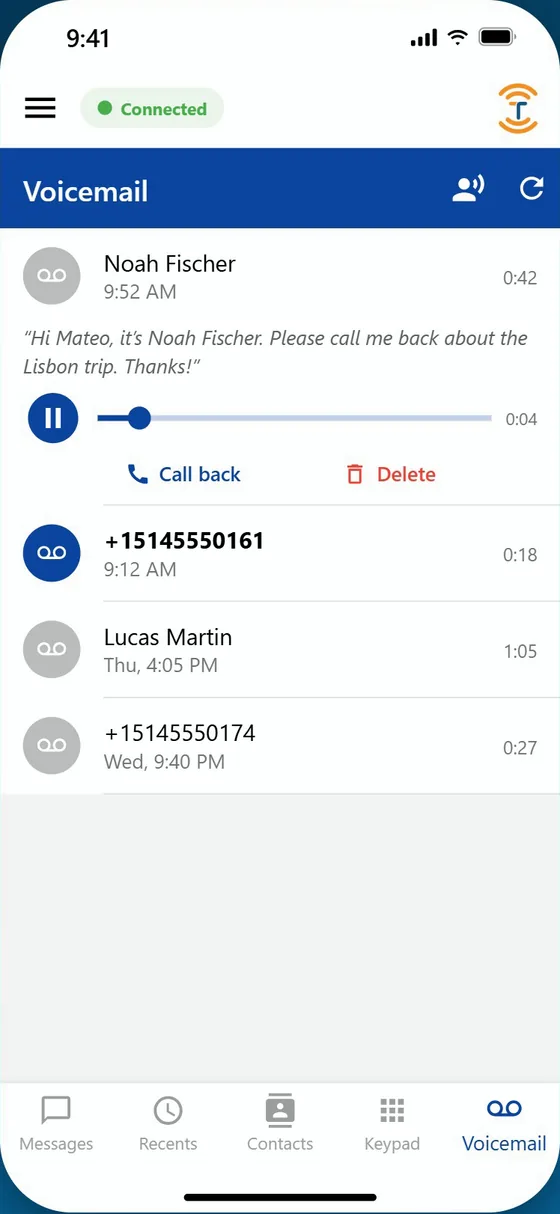
The same business number rings your computer, your mobile and your desk phone. Answer on whichever is closest.
TelephonicaCloud PBX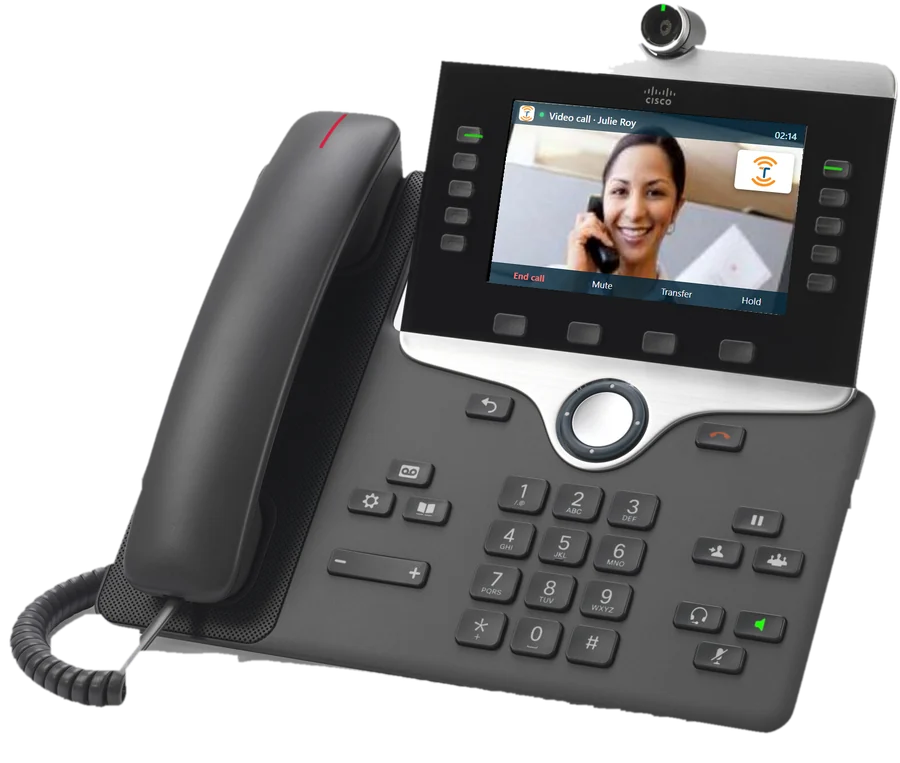
- Hold, transfer & conference
- Voicemail
- Call recording
- Recent calls with recordings
- Team chat with photos and files
- SMS & MMS texting
- Company directory with live status
Real app screen shown with a demo account.
02 / 04
Mobile appYour office line, in your pocket
On iPhone and Android, the app is your business phone wherever you are.
- Your business number, not your personal oneCall and text customers from the mobile app; they see your business number.
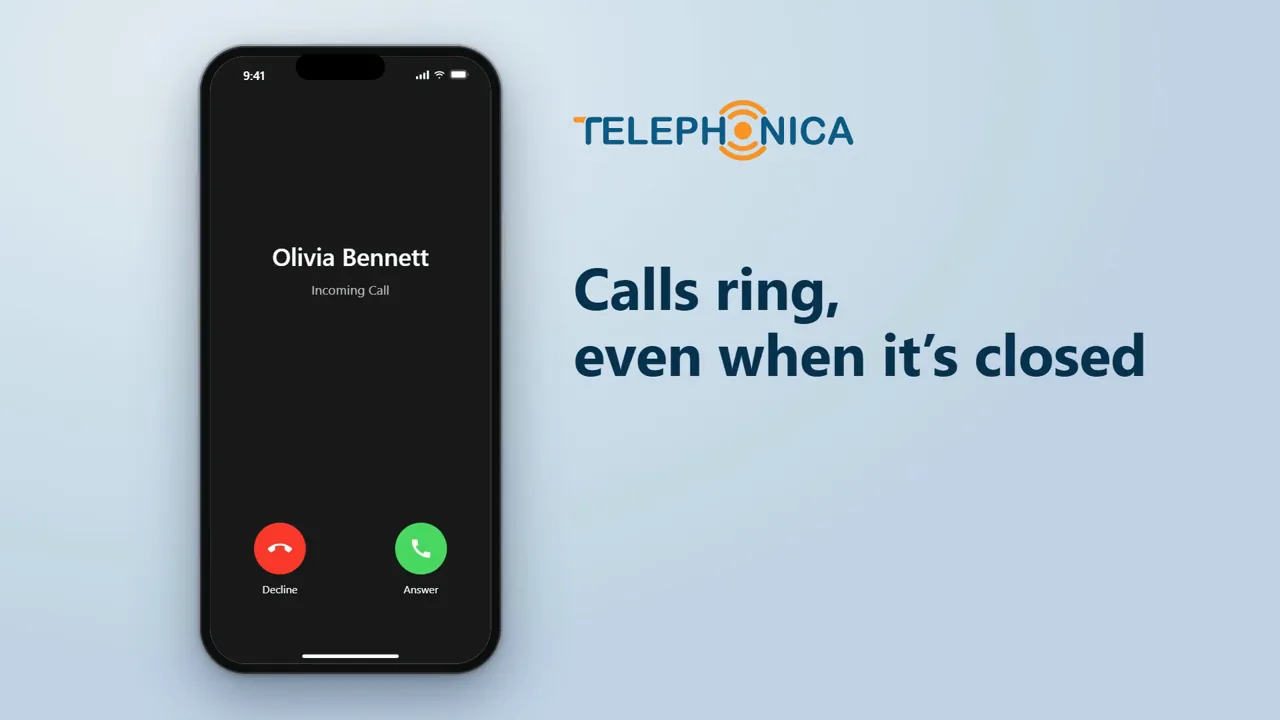
- Rings like any phone callEven on the lock screen, and even when the app is closed.
- Transfer the way you wantSend a call straight to a colleague, or speak to them first. Add a call, swap between callers, or merge everyone into a conference.
- Record, replay, call backRecord a call with one tap, listen to your voicemail, and call back from your recent calls.
03 / 04
Desktop appBuilt for busy teams
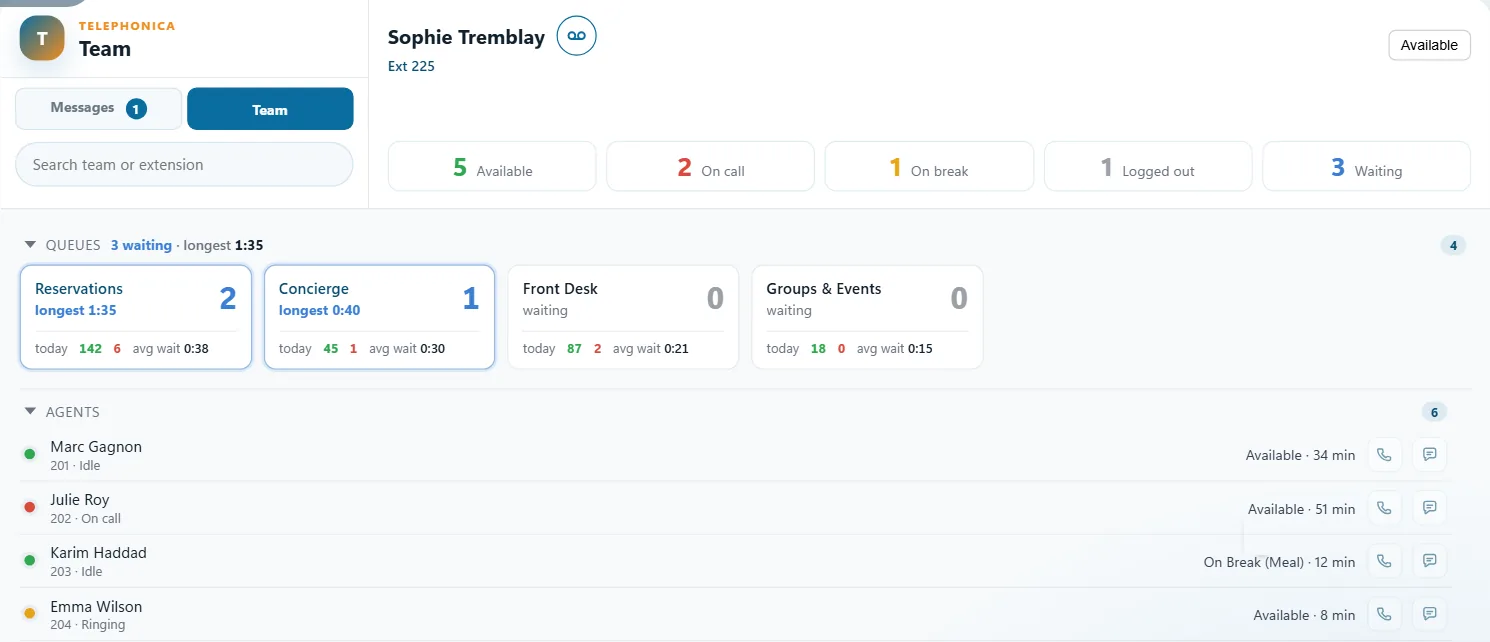
On Windows, the desktop app shows your team and your queues while you work.
- Your team at a glanceWho is available, on a call or on break, and how many callers wait in each of your queues.
- Chat with your teamMessage a colleague, paste a screenshot or drag in photos and PDFs. Text customers from the same window.
- Agent statusGo Available, On break with a reason, or Logged out, right from the app.
- Call outcomes and CRM pop-upTag each call with an outcome, and open the caller’s record in your web CRM when you answer.
TelephonicaReal app screen shown with a demo account.
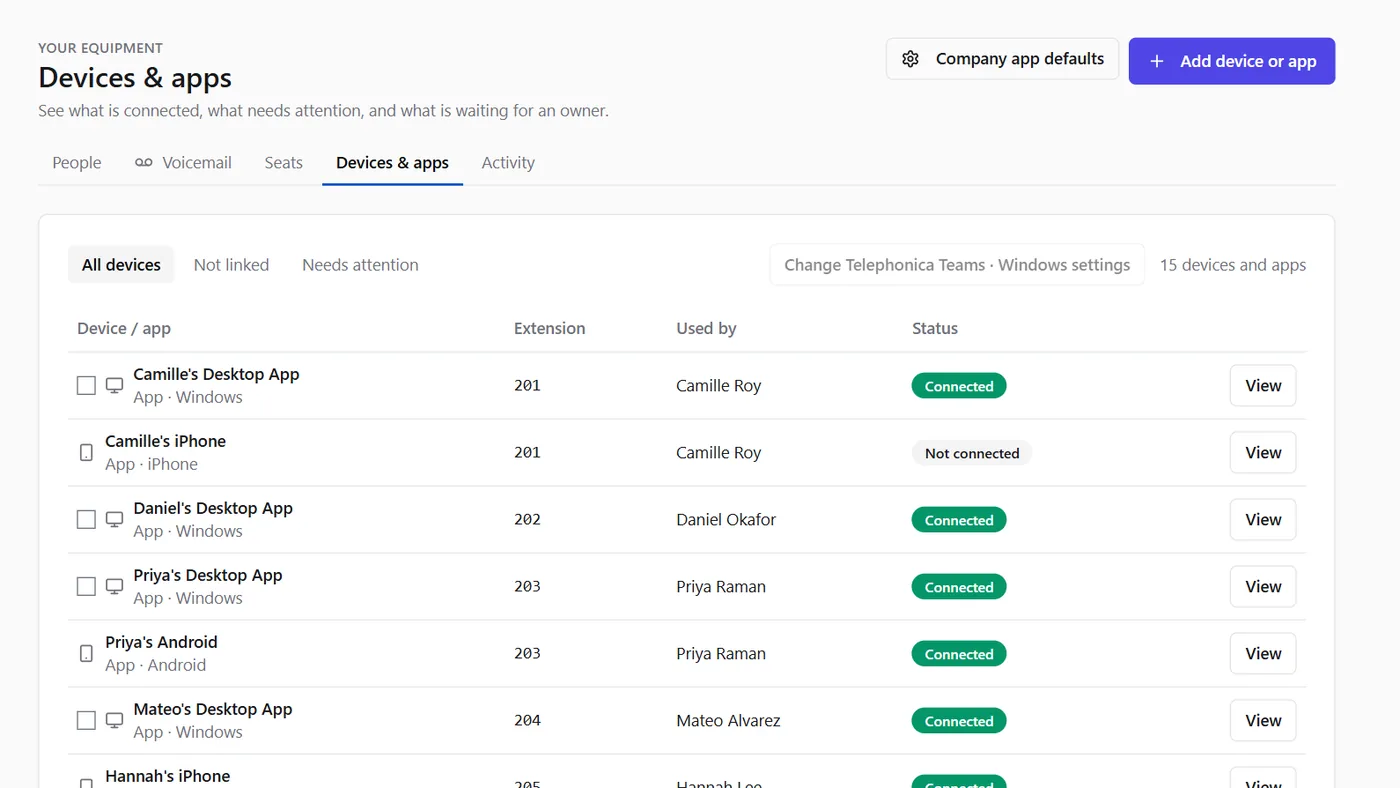
Real portal screen shown with a demo account.
04 / 04
Getting startedSigned in in minutes
No hardware to install: your administrator adds you, and you are ready to take calls.
- A setup email from your adminYour administrator adds you in the client portal and sends you a phone setup email.
- Tap or scan, and you are inOn your phone, tap “Open in the app”. On a computer, scan the QR code. Your line sets itself up.
- Always up to dateOn Windows the app installs from the Microsoft Store and keeps itself up to date.
Get the Telephonica app
The app works with your Telephonica phone service. Not a customer yet? Choose a plan first.
Put your team on the app
Tell us how many people need the app and the numbers you want to keep. We will show you how it works and suggest a plan.
- A reply within one business dayFrom our team, in English or French.
- A live demoThe mobile app, the desktop app and the client portal.
- A plan and a quoteFor your team and your numbers.
Or call us at 1-844-360-0400, Monday to Friday, 9 a.m. to 5 p.m. Eastern.
Your request goes to our sales team. Open the form in a new tab
Telephonica app questions
Which devices does the Telephonica app work on?
iPhone and iPad, Android, Mac and Windows. The mobile and Mac apps are in the App Store and Google Play; the Windows desktop app is in the Microsoft Store.
What can I do in the app?
Make and receive business calls, hold, transfer and conference, record a call, listen to voicemail, and see your recent calls. You can chat with your team, with photos and files, see the company directory with each colleague’s live status, and send SMS and MMS texts when texting is turned on for your account.
Is the app free?
Yes, the app is a free download from the App Store, Google Play and the Microsoft Store. It works with your Telephonica phone service.
Do my customers see my personal number?
No. Calls and texts from the app show your business number.
How do I sign in?
Your administrator adds you in the Telephonica client portal and sends you a phone setup email. On your phone, tap “Open in the app”; on a computer, scan the QR code with the app. Your line sets itself up.
Do calls ring when the app is closed?
Yes. On your mobile, calls to your extension ring like any phone call, even on the lock screen and when the app is closed. Allow notifications when the app asks.
Can call center agents use the app?
Yes. Agents take queue calls in the Windows desktop app or the mobile app. In the desktop app they set their status, tag each call with an outcome, and the caller’s record can open in your web CRM.
Do I still need a desk phone?
No. The app can replace a desk phone, or ring together with it on the same business number.
